
A redline is the marked-up draft one party sends back to the other during a contract negotiation. Deletions are struck through, additions are underlined and comments in the margin explain the changes. Aviation legal and contracts teams use redlines to negotiate MRO agreements, General Terms Agreements, aircraft leases and purchase agreements, usually in Microsoft Word.
This guide covers how a redline round works, who reviews it and what to check before you respond. It also covers a step that is easy to skip when a response is due by the end of the day: checking what your company accepted the last time a counterparty asked for the same change.
Lexsophos provides contract intelligence for aviation legal and contracts teams. The examples in this guide come from the fictional MRO files we use in our product walkthroughs.
What does it mean to redline a contract?
Redlining a contract means proposing changes to a draft in a way the other side can see, so both parties can negotiate the wording before anyone signs. In Microsoft Word, that means turning on Track Changes so every insertion and deletion is marked with the author and date, and using comments to explain why a change was made.
When the other side sends a clean draft without tracked changes, or you want to confirm that their tracked changes show everything, Word's Compare feature produces a marked-up comparison between two versions. Some teams call that comparison a blackline.
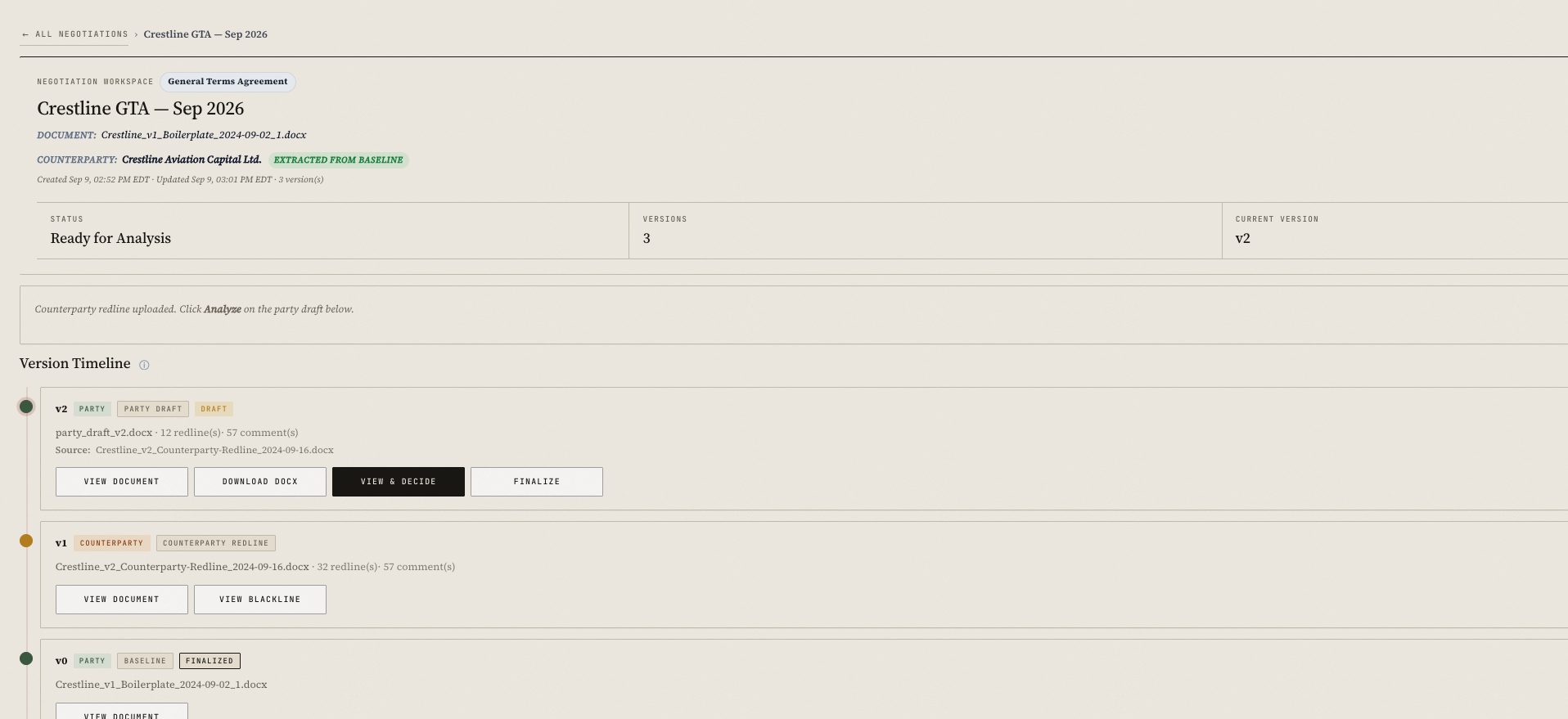
Each round produces a new version. Over a long negotiation, that can mean a dozen or more Word files for one agreement, each with its own changes and comments.
How do you respond to a counterparty redline?
Compare the redline with the version you sent, sort out the changes that matter, check how your company handled each one before, then accept, modify or reject each change with a comment that records the reason. A full round usually runs through these steps:
- The counterparty's draft comes in. It may be a redline of your paper or a first draft on their own form.
- Compare it with the version you sent. Run a comparison against your last version even when the changes are tracked, so you catch any edit that wasn't.
- Sort the changes. Some are drafting fixes. Others change who carries a risk, how much money is at stake or what remedies are available. Spend your time on those.
- Check how your company handled each substantive change before. The next section covers this step.
- Decide what to do with each change. Accept it, modify it or reject it, and add a comment that records the reason.
- Get internal sign-off where you need it. Some positions need approval from someone outside the legal or contracts team.
- Send the next Word version and keep a copy. Keep the version you sent, with its tracked changes and comments, alongside the one you received.
- Review the final version against what was agreed. Before signature, confirm that the execution copy reflects every agreed change and nothing else.
How do you check what your company agreed before?
Look at the earlier negotiation, not only the final contract. The counterparty's earlier redline, your company's response and the comments on both show what was asked for, what was accepted and what was given up. The final contract shows only the result.
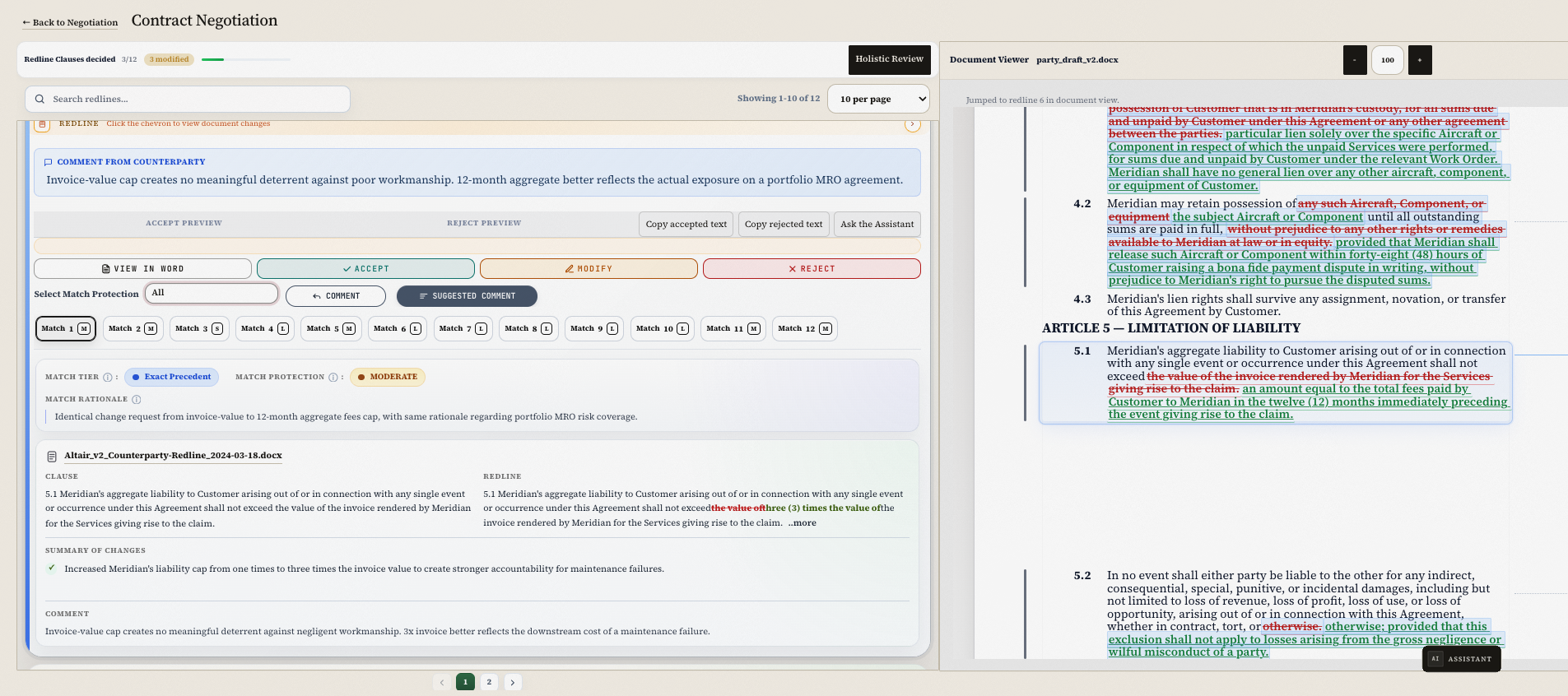
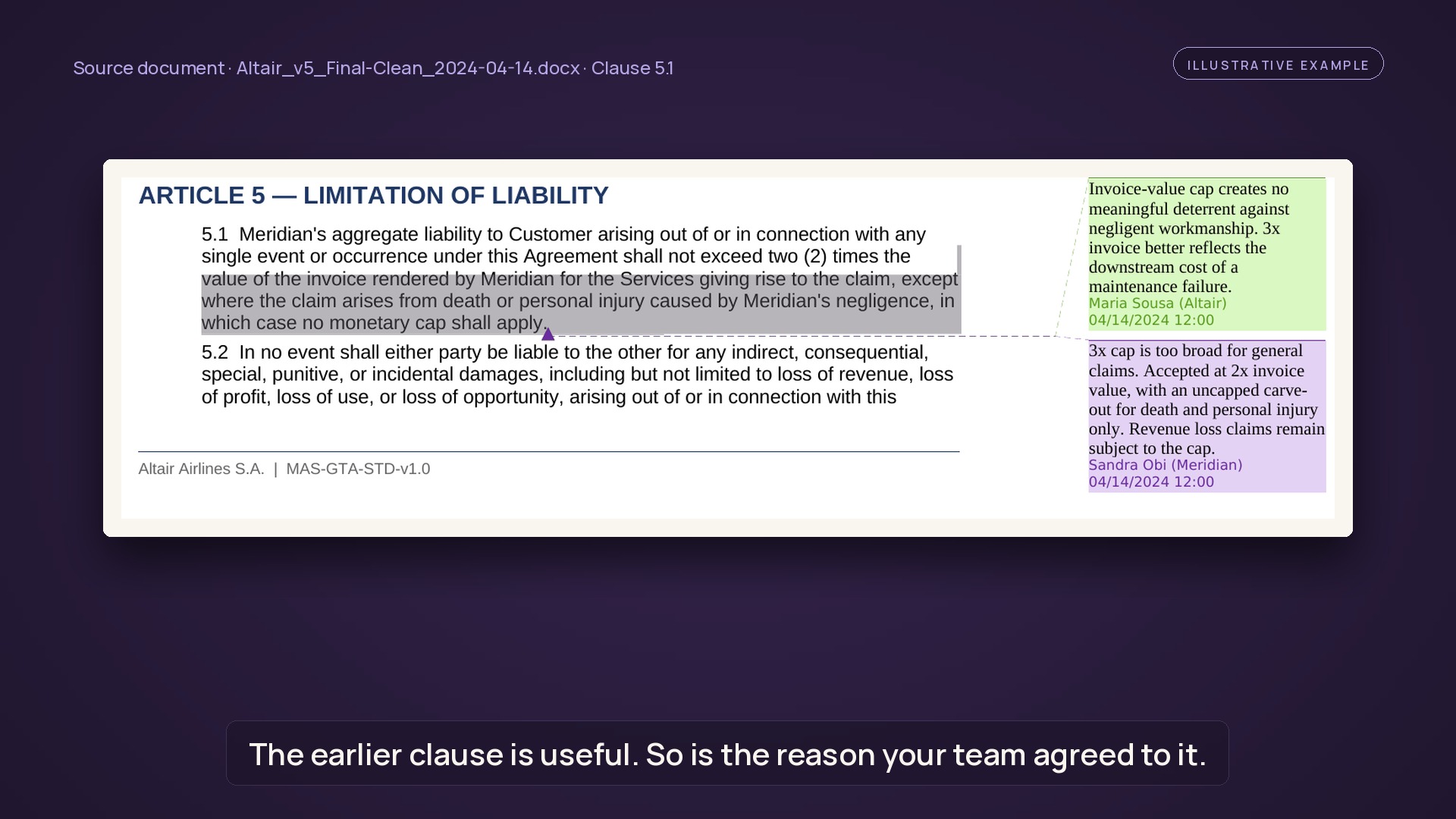
Here is an example from our illustrative MRO files. A counterparty's redline replaces an MRO's invoice-based liability cap with the total fees paid over the previous 12 months. The MRO's team remembers settling the liability cap with another customer. The earlier file shows more than a number. The MRO accepted a cap of two times the relevant invoice, with an uncapped carve-out for death and personal injury only, and its comment says revenue-loss claims stay under the cap.
If the team describes that as "we agreed to two times the invoice last time," it loses the carve-out and the condition recorded with it. Whether the new request produces a higher or lower cap, and whether the earlier condition still applies, is what counsel has to assess before answering.
The places to look are:
- the counterparty's earlier redline and the comments that came with it;
- your company's response and its comments;
- the final version in the file;
- the executed agreement.
What can't an earlier redline tell you?
An earlier redline won't tell you whether that version was signed, whether the position became company policy, why a change was made if nobody recorded a reason, how the numbers compare in the new deal or whether a comment matches the clause beside it. Check each of these before you rely on it.
Whether that version was signed. A final draft in the file is not proof of execution. Check the executed agreement before treating a draft position as the agreed term.
Whether the earlier position became policy. In our illustrative governing law example, one MRO agreement records the provider's position that New York law is non-negotiable because its insurance program, standard forms and counsel are all set up under New York law. Three months later, the same team proposed English law as a compromise with a different counterparty. The later file shows that a compromise was made once. It doesn't show that the company changed its policy or who approved the departure.
Why a change was made. Not every change comes with a comment. When none was recorded, the file shows what changed but not the reason. That gap should stay visible to whoever handles the next negotiation, so nobody fills it with a guess.
Whether the numbers work the same way in this deal. In the liability example, a cap set at two times the relevant invoice and a cap set at 12 months of fees can produce very different results. With a $100,000 invoice, two times the invoice is $200,000. If the customer paid $150,000 in fees over the previous 12 months, the fee-based cap is lower. If it paid $500,000, the fee-based cap is higher. Run the calculation before you decide which position is better for your company.
Whether the comment and the clause agree. In the same liability example, a comment says revenue-loss claims stay under the cap, while the liability article lists loss of revenue as an excluded damage. Read the comment and the clause together before relying on either one.
Who reviews a contract redline?
On an aviation agreement, the redline is usually reviewed by in-house counsel and a contracts or commercial manager, with outside counsel, business owners and an approver brought in as needed:
- In-house counsel, who decide the legal position and draft or approve the response;
- Contracts or commercial managers, who run the negotiation day to day and often handle the less contentious changes;
- Outside counsel, brought in for larger transactions or specialist questions;
- Business owners, such as the fleet, technical, maintenance or finance teams, who know whether a change works in practice;
- An approver, who can sign off on a departure from the company's standard position.
One person is often missing: whoever negotiated the same clause last time. People move roles and leave companies, and years of negotiation experience can go with them. If their reasoning isn't in the file, the next negotiator has to rebuild a position somebody already worked out.
What are the do's and don'ts of answering a redline?
Do:
- compare every incoming version against the last one you sent;
- record the reason in a comment when you accept, modify or reject a substantive change, because the next negotiator will need it;
- note who wrote each comment, since a counterparty comment explains its request and your team's reply may record a condition;
- keep each Word version with tracked changes and comments intact, including the counterparty's redlines and your responses;
- confirm current instructions and approval authority before reusing an earlier compromise.
Don't:
- describe an earlier change more broadly than it was written;
- treat a final draft in the file as the executed agreement;
- accept changes you haven't compared against your last version;
- rebuild a position from memory an hour before the call.
What tools do you need to redline a contract?
- Word Track Changes and comments for marking up drafts and explaining changes.
- Word Compare for producing a comparison between any two versions.
- A shared drive or document management system for keeping every version in one place, named consistently by counterparty, agreement and date.
- A contract repository or contract management system for executed agreements. Check whether yours also keeps the drafts, redlines and comments, or only the signed copy.
- Lexsophos for comparing a new redline with your earlier Word negotiations. Its Precedent Engine brings earlier clauses, redlines and recorded comments into the review of a new redline, with a link to the source document so your team can check the wording itself.
Frequently asked questions
What is the difference between a redline and a blackline?
Usage varies by firm. Many teams use "redline" for a draft marked up with tracked changes and "blackline" for a comparison generated between two versions. If it matters, ask the other side which one they are sending.
Should you rely on the other side's tracked changes?
Compare their draft against the last version you sent, even when the changes are tracked. A comparison also shows edits that were made with Track Changes turned off.
Is the final draft in your files the same as the signed agreement?
Not necessarily. A version marked final may have changed before signature. Check the executed agreement before treating an earlier position as agreed.
Why record a reason in a comment?
The next person to negotiate the same clause may not be the person who made the decision. Without a comment, the file shows what changed but not why.
How can you find an earlier position quickly?
Keep every Word version with its tracked changes and comments, named by counterparty, agreement and date. Lexsophos compares a new redline with those earlier negotiations and shows the earlier wording and recorded comments, with a link to the source file.
See the example in a walkthrough
We can take you through the liability cap example in a 30-minute walkthrough using illustrative files. You don't need to send us your contracts.